
Day and week approval
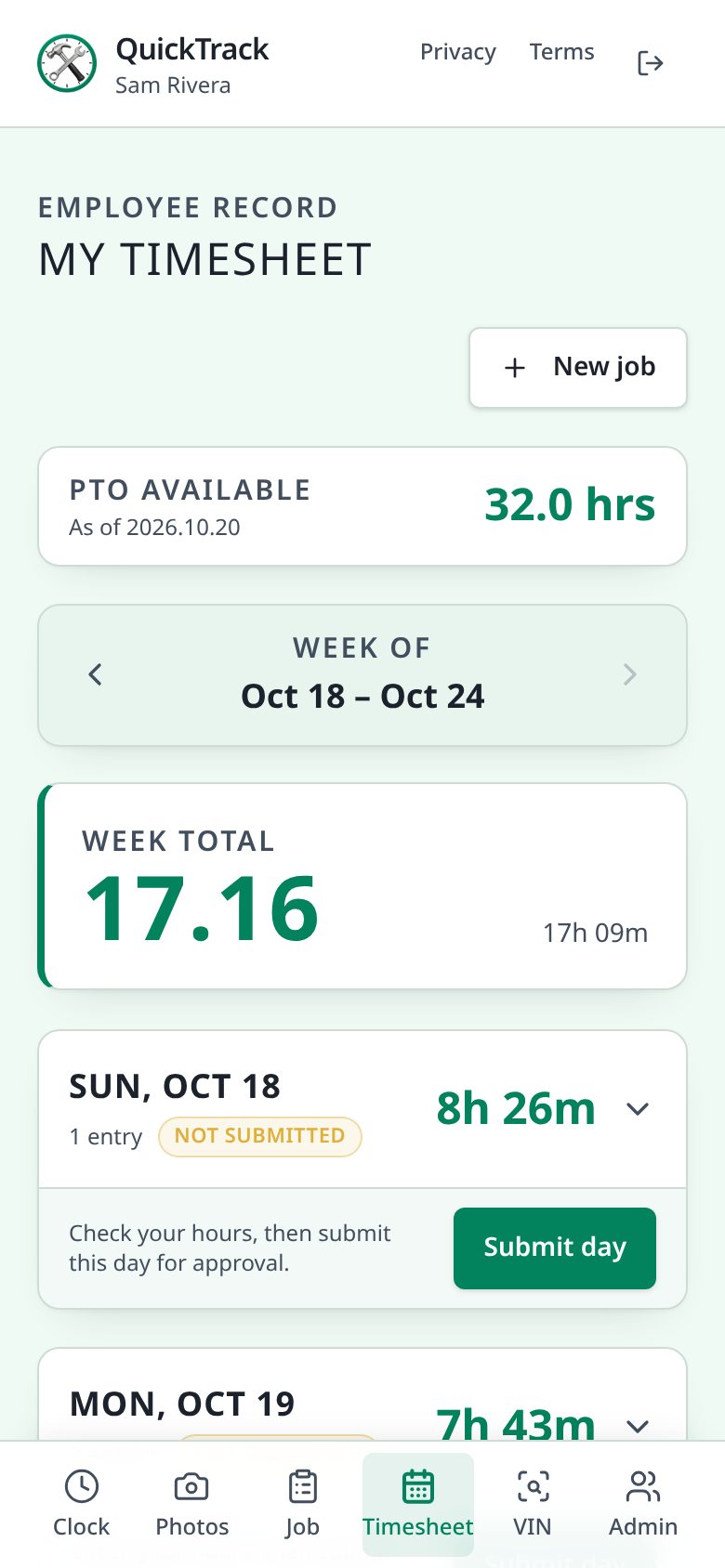
Managers approve each day. The office approves the week, which queues it for QuickBooks.
QuickBooks Desktop time tracking
QuickTrack is the time clock for the shop and the road. Techs clock on to open QuickBooks jobs from their phones, add notes and photos as they work, and the office reviews and approves the hours before they post to QuickBooks Desktop. No paper tickets, no re-typing.
How it works
Each hour follows the same clear path, with a review at every step, so the timesheet in QuickBooks matches what happened in the shop.
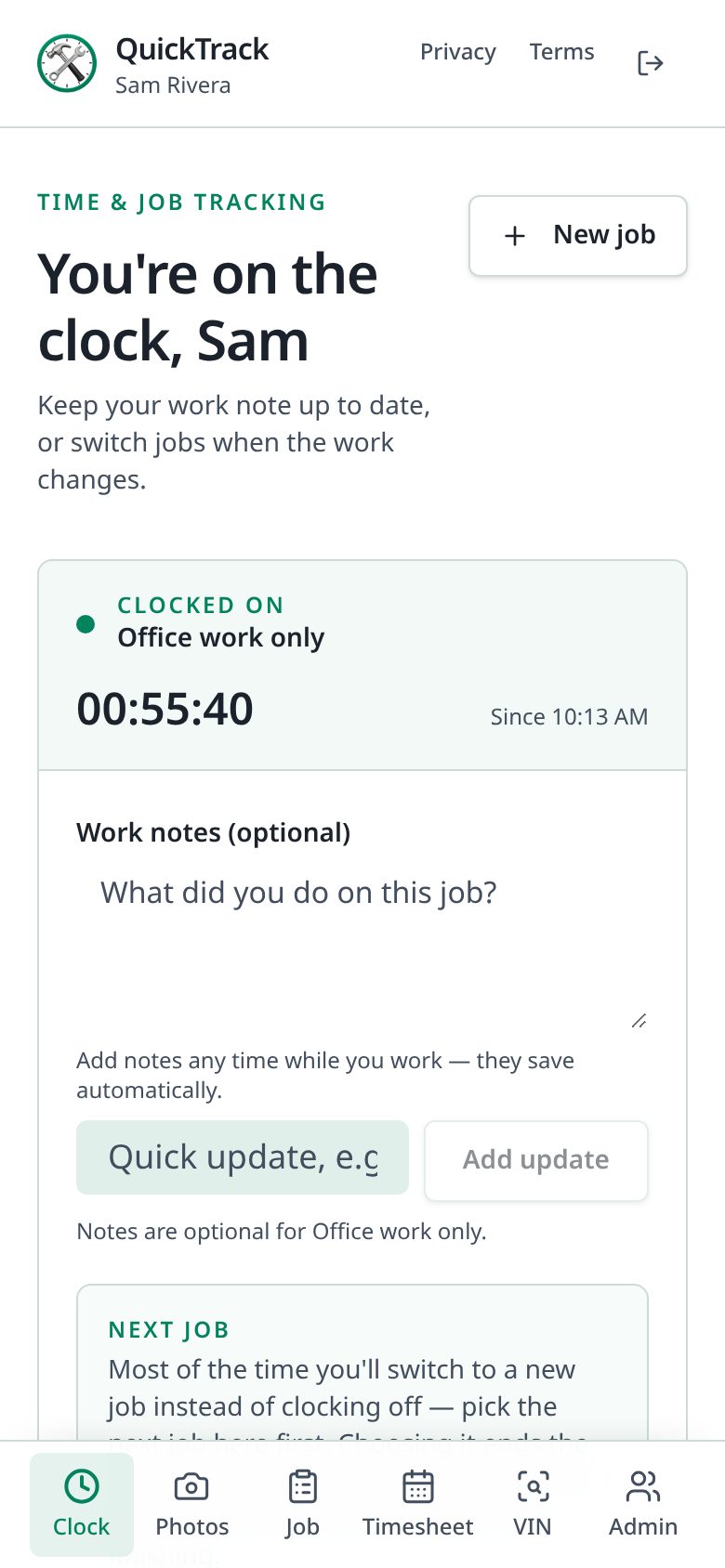
Techs pick an open QuickBooks job on their phone and start the clock.
Work notes and job photos are attached to the time as the work happens.
Managers check each day, then the office approves the full week.
Approved hours post to the QuickBooks Desktop weekly timesheet.
For technicians
Big buttons, clear screens, and only the jobs that are open right now.
For managers and payroll
A wide timesheet shows the whole crew's week at a glance: the punch times, the paid times, and the totals, all together.
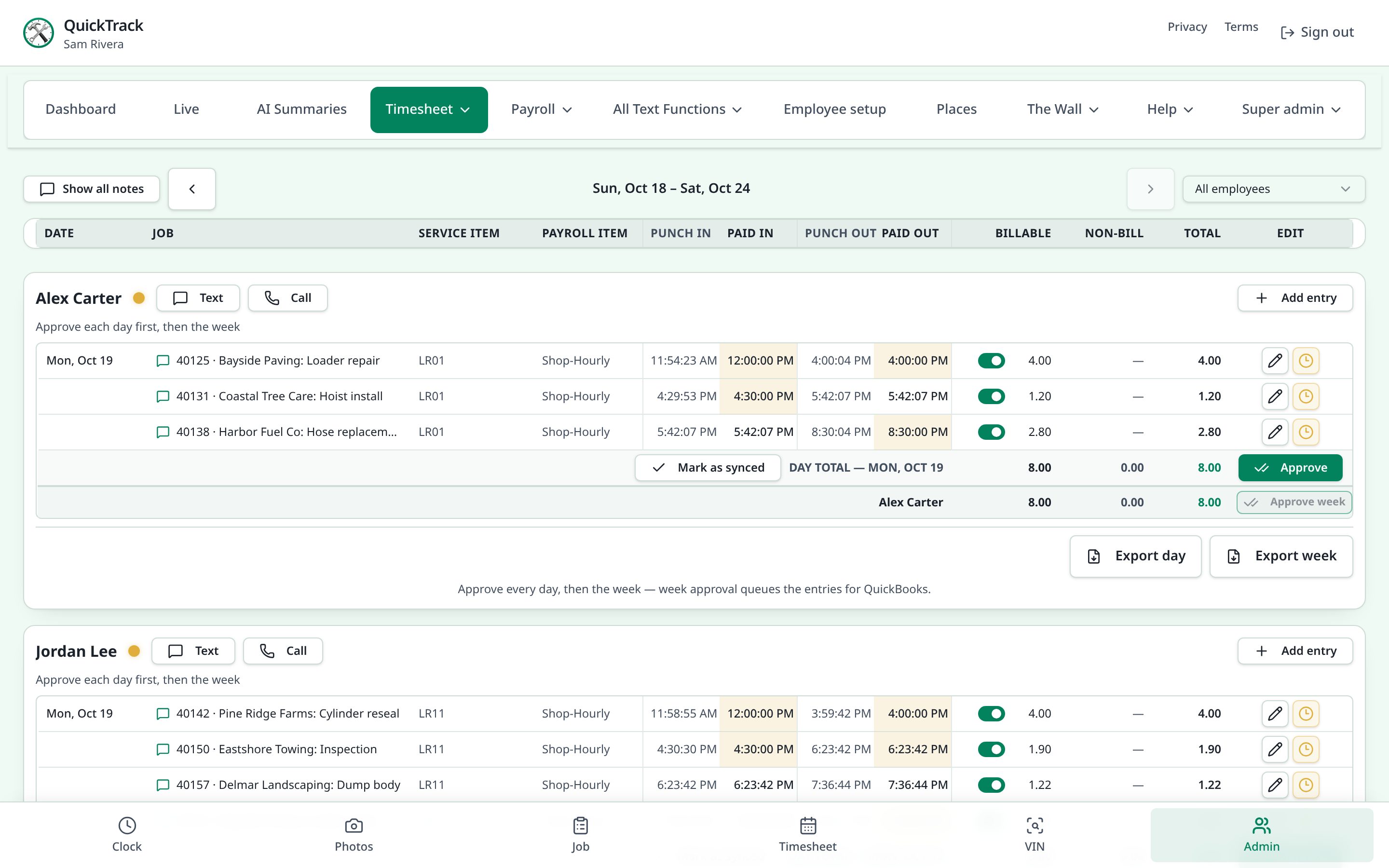
Managers approve each day. The office approves the week, which queues it for QuickBooks.
Start, lunch, and end times round to each person's setup, and overtime needs owner approval.
Queue a finished COD job's time right away instead of waiting for Friday.
See each tech's notes right on the timesheet to correct mistakes quickly.
Undo any day or week approval until the hours are sent to QuickBooks.
Print weekly timesheets with lines for O/T, holiday, PTO, and A/R deduction.
QuickBooks Desktop connection
QuickTrack connects through the QuickBooks Web Connector, so it works with QuickBooks Desktop Enterprise without changing how the office works.
Phone
Tech clocks on and adds notes
QuickTrack
Daily review, then weekly approval
Web Connector
Picks up approved hours on its next run
QuickBooks Desktop
Hours land on the weekly timesheet
The Wall shop display
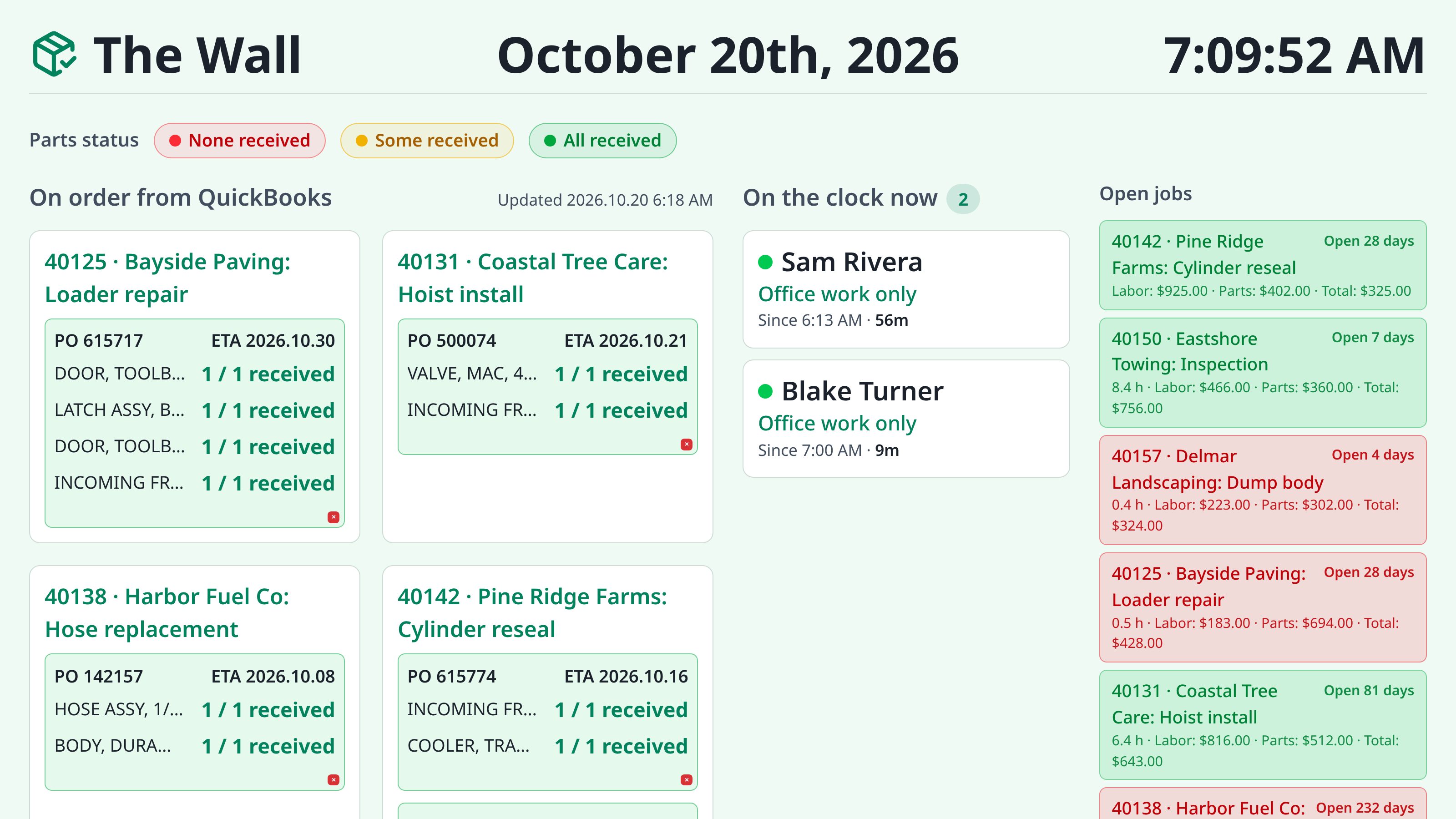
The Wall runs on the shop TV and updates on its own, with no sign-in. It shows who's on the clock, open jobs, and part orders, plus the date and time.
Photos, summaries and documents
Notes and photos collected during the job become clear paperwork when the job is done.
Every job photo is named by customer and the time it was taken, so the whole team can find it later.
Turn a tech's dated notes into a clean service summary that only uses the facts they wrote.
Combine summaries, photos, and parts into one PDF or Word file to send to the customer.
Texting and customer inbox
Work texts go out from the shop's business number, only to people who said yes.
Security and control
Each person sees only what their job needs, and every important change is checked before it's saved.
Crew, manager, admin, and owner levels, each with its own screens.
Admin accounts confirm a code from an authenticator app.
Punches are checked against the shop location.
Time that's been sent to QuickBooks can't be changed by accident.
Common questions
Quick answers to the questions we hear most.
Use the account provided by your administrator.